Store password in your SAP Logon pad
Following are the steps to Store password in your SAP Logon pad such that you do not have to enter the same repeatedly.
Note: you need authorization to edit registry.
Please be aware of security risk by reading note: https://websmp130.sap-ag.de/sap(bD1ubCZjPTAwMQ==)/bc/bsp/spn/sapnotes/index2.htm?numm=146173
First Step:
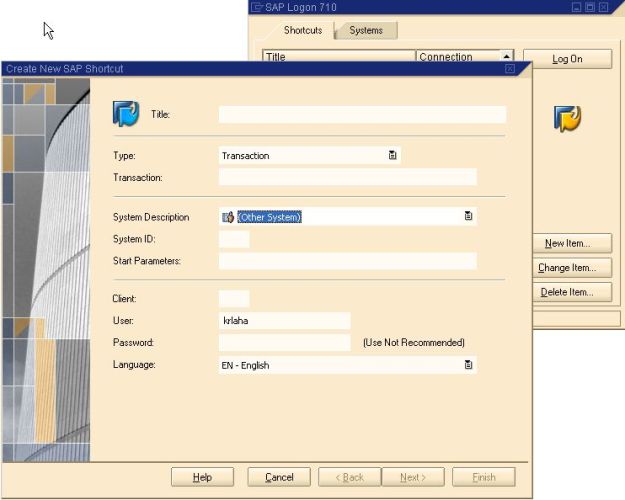
Create a new Shortcut for a System enty in SAP Logon Pad.
Second Step:
Open ‘Run’ from Start -> Run and write “sapshcut -register” press enter, it will add SAP Shortcut entry in registry, will confirm same with a pop up.
Third Step:
Change the resgitry entry to enable password. Path would be:
HKEY_CURRENT_USERSoftwareSAPSAPShortcutSecurity EnablePassword = 1

You can maintain the password and it will promt with warning, press Ok.
Now if you go back to the short cut you created, Password input box will be ready for entry.
From next onwards you can just double click the shortcut, it will logon into the system without asking for user and password…